QR labels and scanning
- Equipment and inventory
- Orders and operations
Label your equipment with QR codes and scan the units you prepare, deliver and receive back.
When several identical cases are waiting at the door, the model name does not tell you which one is leaving. QR labels connect the physical equipment to its record, helping the warehouse identify the right units as it prepares and checks a job.
Print the codes you need
Link to this section: Print the codes you needCreate codes for individual serialized units or for bulk equipment, then print selected labels in a batch. Existing codes can be reused where appropriate. A QR code identifies equipment in Filmo; it does not replace the item’s SKU or a unit’s serial number.
For example: two camera kits going out
Link to this section: For example: two camera kits going outImagine preparing two camera kits for different shoots. Assign the actual camera units, open each delivery and scan their labels to mark them prepared or delivered. You can choose units yourself or use automatic serial assignment and review the result. Save the changes after scanning.
Check what comes back
Link to this section: Check what comes backAt return, record both arrival and condition. Returned equipment is not the same as checked-in equipment. A bulk return can handle lines from several orders together, but it does not create maintenance incidents or finish the return groups. Use the order’s return page when damaged equipment needs follow-up.
Use it today
Link to this section: Use it todayThe guides and recordings below describe Filmo today. Screens and available options may have changed since this update.
Use Print labels to create missing codes and match the label size to your printer. Print one sample before a batch. QR identification needs its add-on; generating codes also needs inventory edit access.
Follow Prepare an order for camera or barcode-scanner use in the browser, and Return equipment from several orders for the limits of a bulk return. Save scans, then review each return group before finishing it.
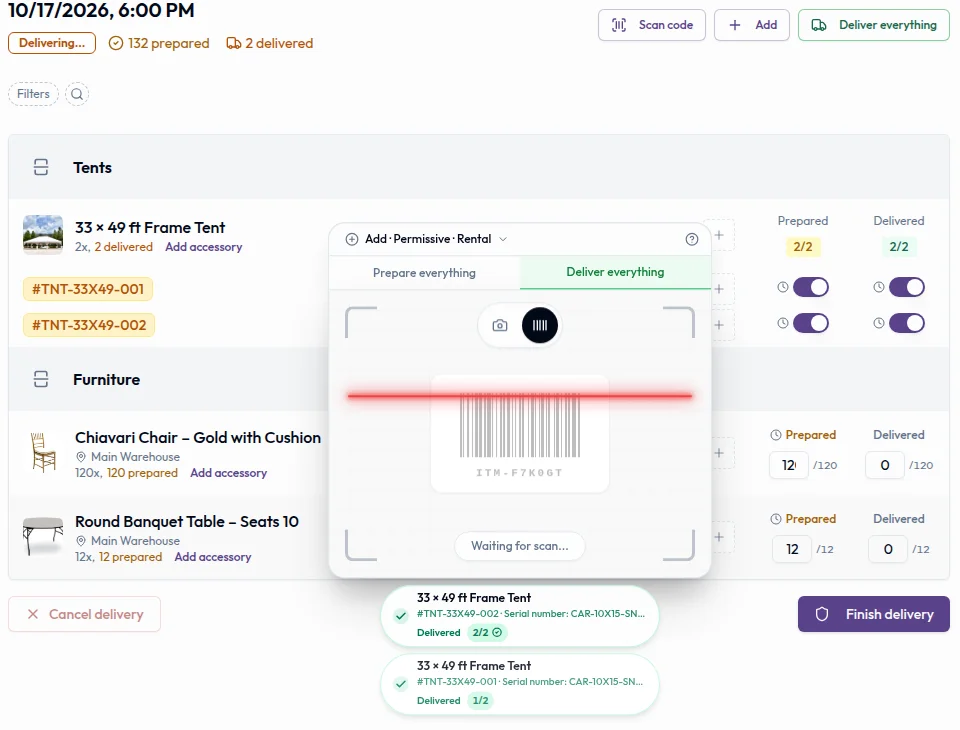
Real product captures keep the language and theme of the recorded interface.
Related help articles
- Print QR code labelsPrices and catalog
- Item codes: SKU, serial code, EAN and QRItems and stock
- Prepare an order for deliveryDeliveries and returns
- Deliver an order and finish the deliveryDeliveries and returns
- Return and check in equipmentDeliveries and returns
- Return items from several orders at onceDeliveries and returns
Related updates
Stay up to date
Get product updates, new blog articles, Filmo announcements and templates in your inbox.