Import and update from spreadsheets
- Platform
- Equipment and inventory
Bring your records into Filmo from Excel or CSV, and use dedicated update files to change existing data in bulk.
Turn rows into records
Link to this section: Turn rows into recordsImport items, contacts, crew, vehicles, spaces and projects from their own lists. Each importer provides its template and expected columns. For an initial catalog, prepare the equipment file once, match the columns to Filmo's fields and verify the rows before creating the records.
Choose between creating and updating
Link to this section: Choose between creating and updatingImport is for adding records; Update changes existing ones. To revise item prices for a new season, open the appropriate item update, export its current data and edit that file. Keep the identifier columns unchanged so Filmo knows which record each row belongs to.
Review the result before trying again
Link to this section: Review the result before trying againValidation distinguishes errors, warnings and conflicts. Warnings can mean a value will be ignored or replaced, and rules differ by record type. Read the result and export the error list where offered. Check which rows were saved before retrying a file, rather than assuming the entire import was undone.
Use it today
Link to this section: Use it todayThe guides and recordings below describe Filmo today. Screens and available options may have changed since this update.
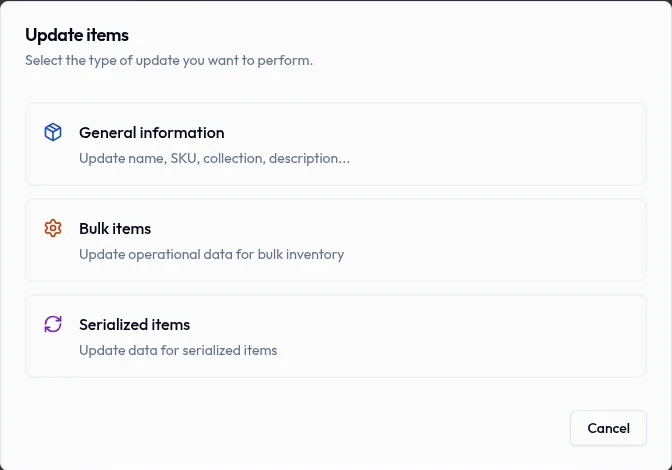
Use Import items from a spreadsheet for a new catalog. For a price review, follow Update items in bulk from a file: choose Bulk items or Serialized items, then Export current data. The general catalog export cannot be uploaded as an update.
Keep the NO MODIFICAR identifier columns and the expected headers intact. Use decimal points without currency symbols, and keep item-level prices consistent across all rows of that item. Empty cells behave differently between files, so review the chosen update's rules before clearing values.
For a video overview, see Import from a spreadsheet in Filmo Academy.
Watch: Import from a spreadsheetReal product captures keep the language and theme of the recorded interface.
Academy videos have English audio and captions, including on Spanish lesson pages.
Related help articles
Related updates
Stay up to date
Get product updates, new blog articles, Filmo announcements and templates in your inbox.